
Employee Guide: Year-End Adjustment Process on PC
- For:
- Employees
- Plans:
- Simple HRHR Essentials0 YenHR Strategy
This guide explains the year-end adjustment process (for employees) on a PC, from receiving the request to completing the survey and submitting the required documents to HR. For the explanation of the process on smartphones, see Employee Guide: Year-End Adjustment Process on Smartphones.
- Time required to answer the survey (estimated)
- 1. Open SmartHR using the link from the email with the year-end adjustment request
- 2. Press [Answer] to begin the year-end adjustment
- 3. Answer the questionnaire
- 4. Check the information you entered
- 5. Check your application forms
- 6. Return to the home screen
- 7. Prepare and submit the required documents
- Need help?
Time required to answer the survey (estimated)
If you already have the necessary documents on hand, here’s a rough estimate of how much time it should take:
- If not enrolled in life insurance and have no dependents under tax law: 1–3 minutes
- If enrolled in life insurance and have dependents under tax law: 5–15 minutes
- If enrolled in life insurance, have dependents under tax law, and have a housing loan: 10–20 minutes
1. Open SmartHR using the link from the email with the year-end adjustment request
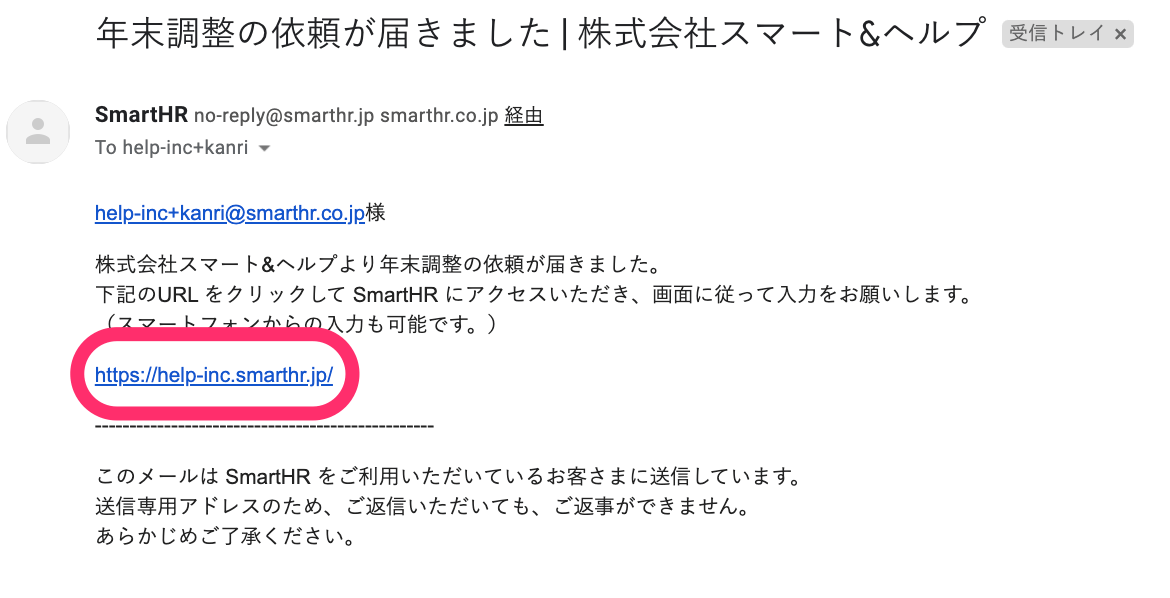
Find an email titled [年末調整の依頼が届きました] (“year-end adjustment request received”) and press the link inside to access SmartHR.
 画像を表示する
Enter your employee number or email address and password on the login screen and press [Log in].
Refer to the following help pages if you need additional guidance (forgot password, unable to log in, etc.):
2. Press [Answer] to begin the year-end adjustment
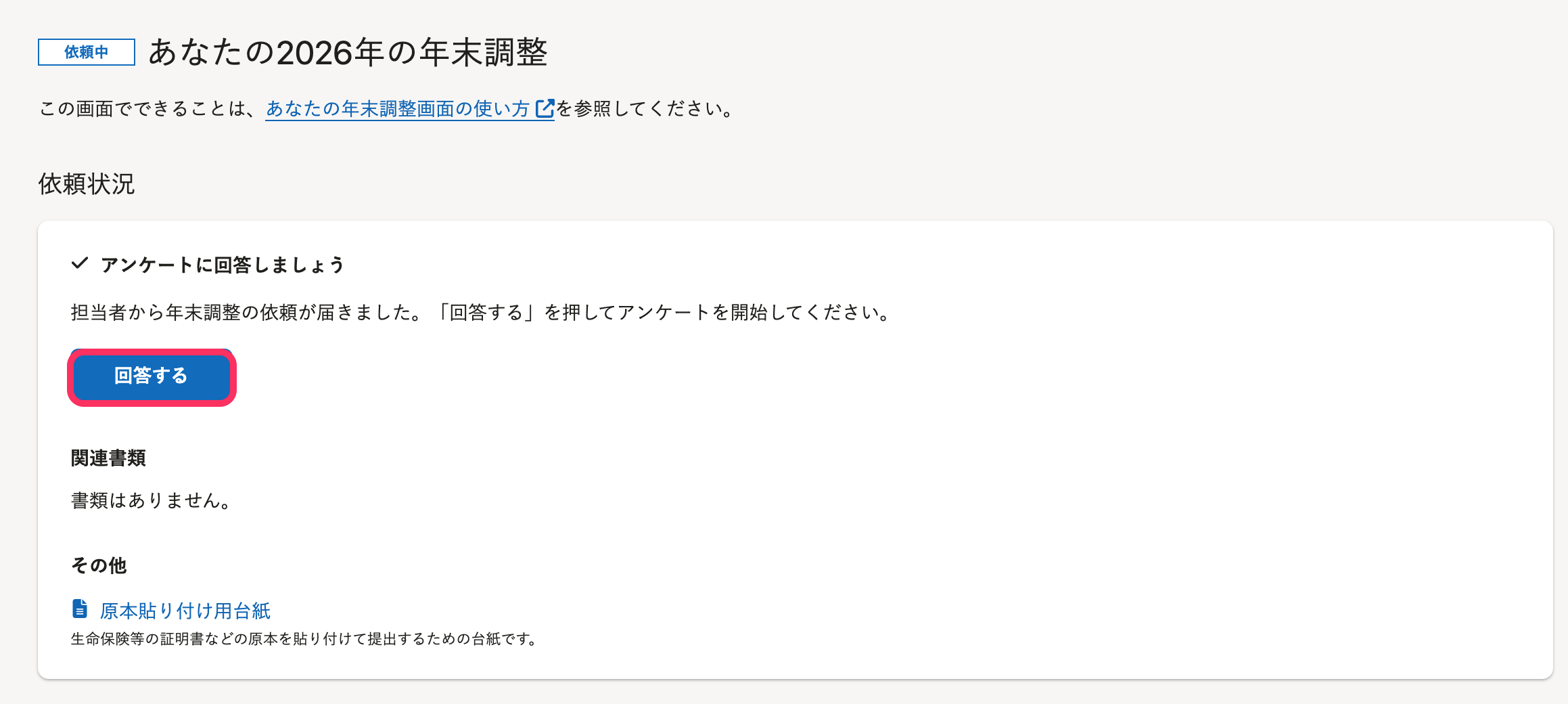
Press [Answer] to open Question 1 of the year-end adjustment.
 画像を表示する
Question 1 explains how to pause the questionnaire, which documents you’ll need, and how long it takes. Please read this page carefully before proceeding.
At the bottom of the page, press [Start] to begin answering.
 画像を表示する
3. Answer the questionnaire
Read each question and select the answers that apply to your situation.
- Information entered is auto-saved, page-by-page, when you move to the next page.
- Partially filled in pages will not be auto-saved unless you move to the next page.
- If you stop partway, your answers are saved up to the previous page you completed.
If you want to redo your answers
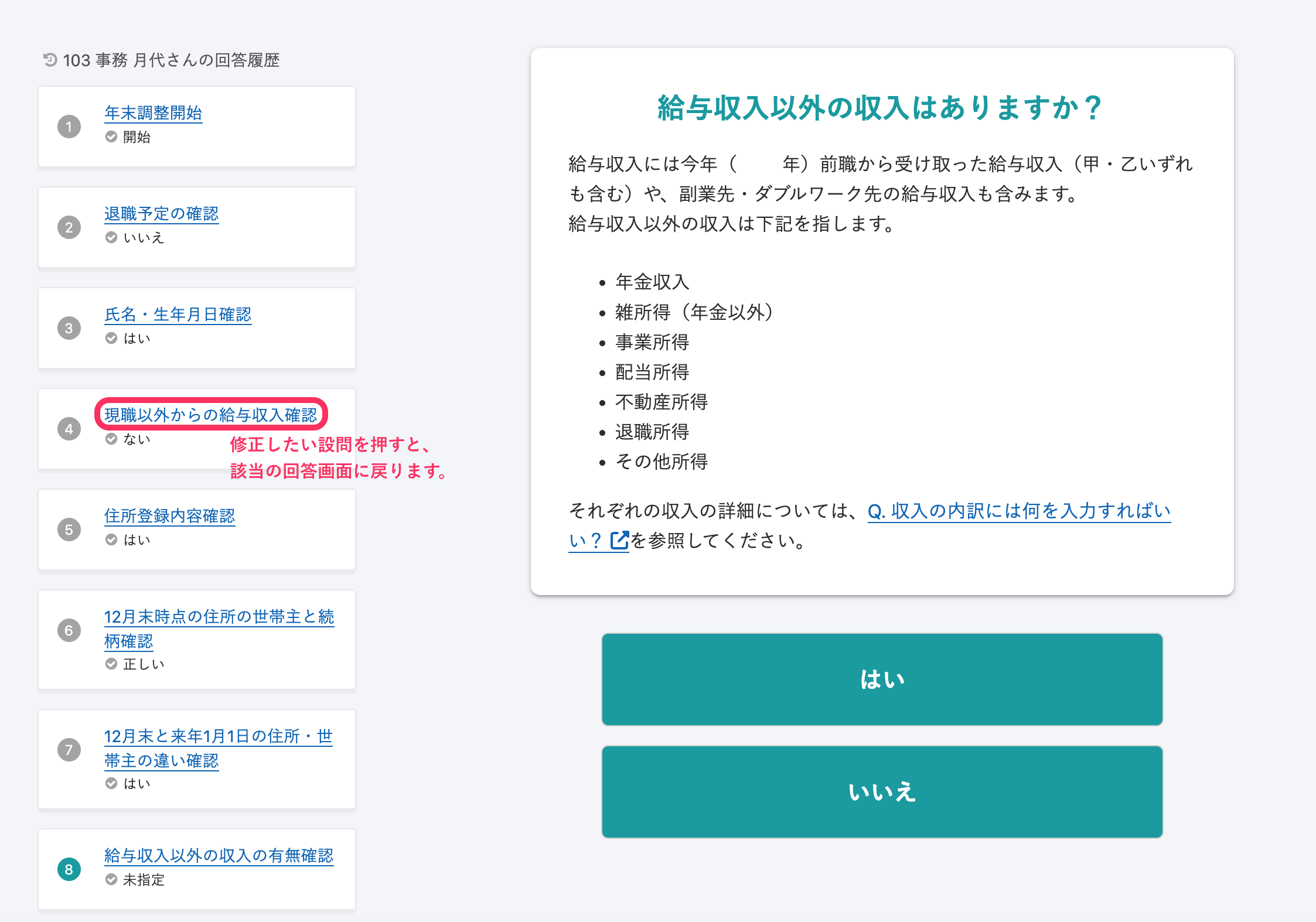
If you selected the wrong option, you can redo it by clicking the blue link in the Answer History on the left side of the screen.
 画像を表示する
If you accidentally deleted your entries
If you deleted pre-filled information by mistake, reload the page or click the previous question in the answer history and start again. Once you move to the next question with deleted data, it can’t be restored. If that happens, please re-enter the information that was deleted.
4. Check the information you entered
During the questionnaire, you’ll see review screens showing what you’ve entered so far.
If you need to make corrections, press [Edit the above].
If everything is correct, check [I confirm that this information is correct] for all items, then proceed to the next question.
 画像を表示する
5. Check your application forms
SmartHR automatically generates the year-end adjustment forms based on your answers.
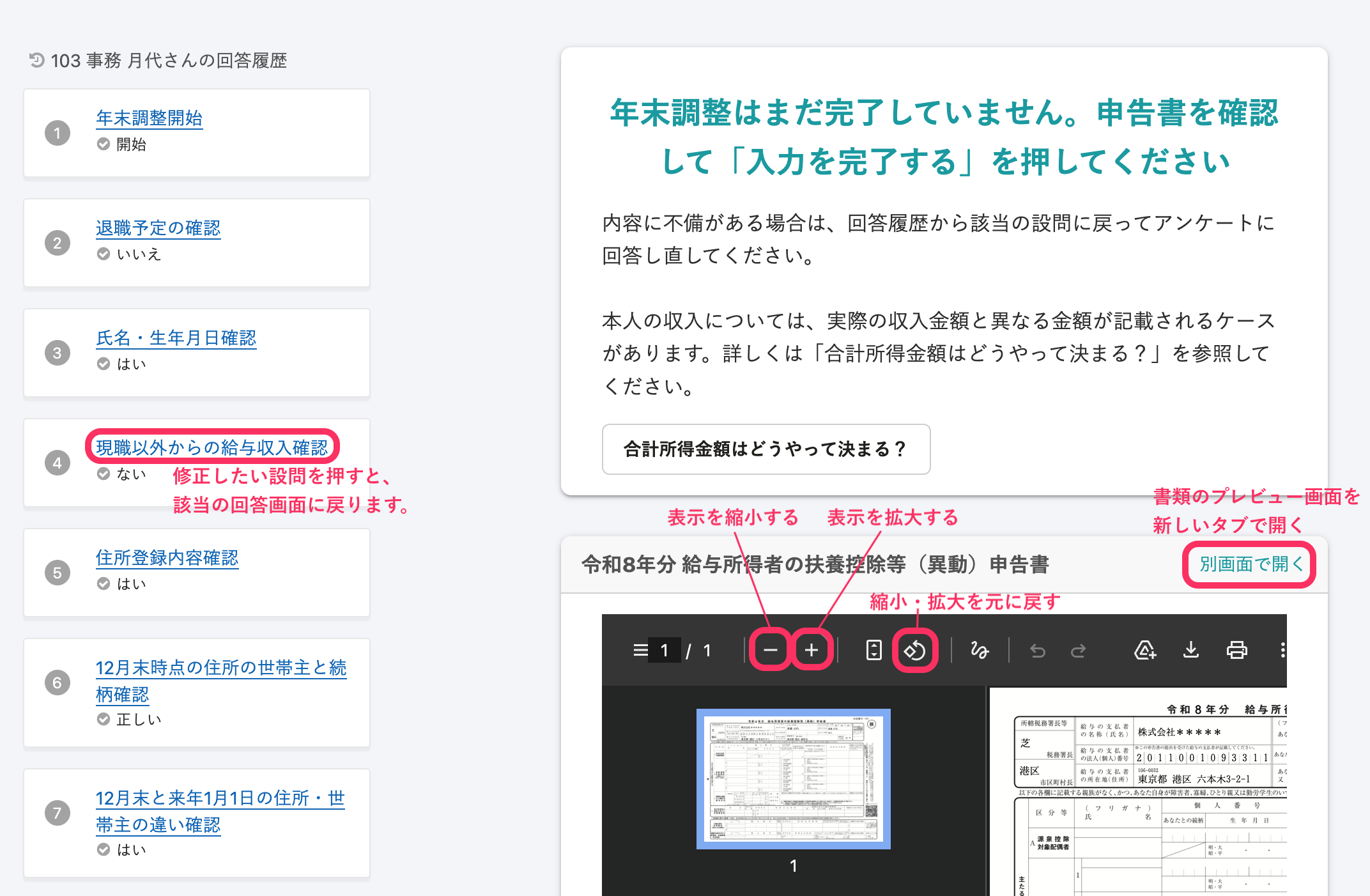
Review the forms on the preview screen. If you need to make corrections, select the blue link from the answer history on the left to go back and edit.
On the form preview screen, you can zoom in or out, and select [Open in new tab] to view the document full-screen.
 画像を表示する
If everything looks correct, select [Complete entering information] at the bottom. The completion screen will appear.
6. Return to the home screen
On the completion screen, select [Return to the year-end adjustment home screen].
 画像を表示する
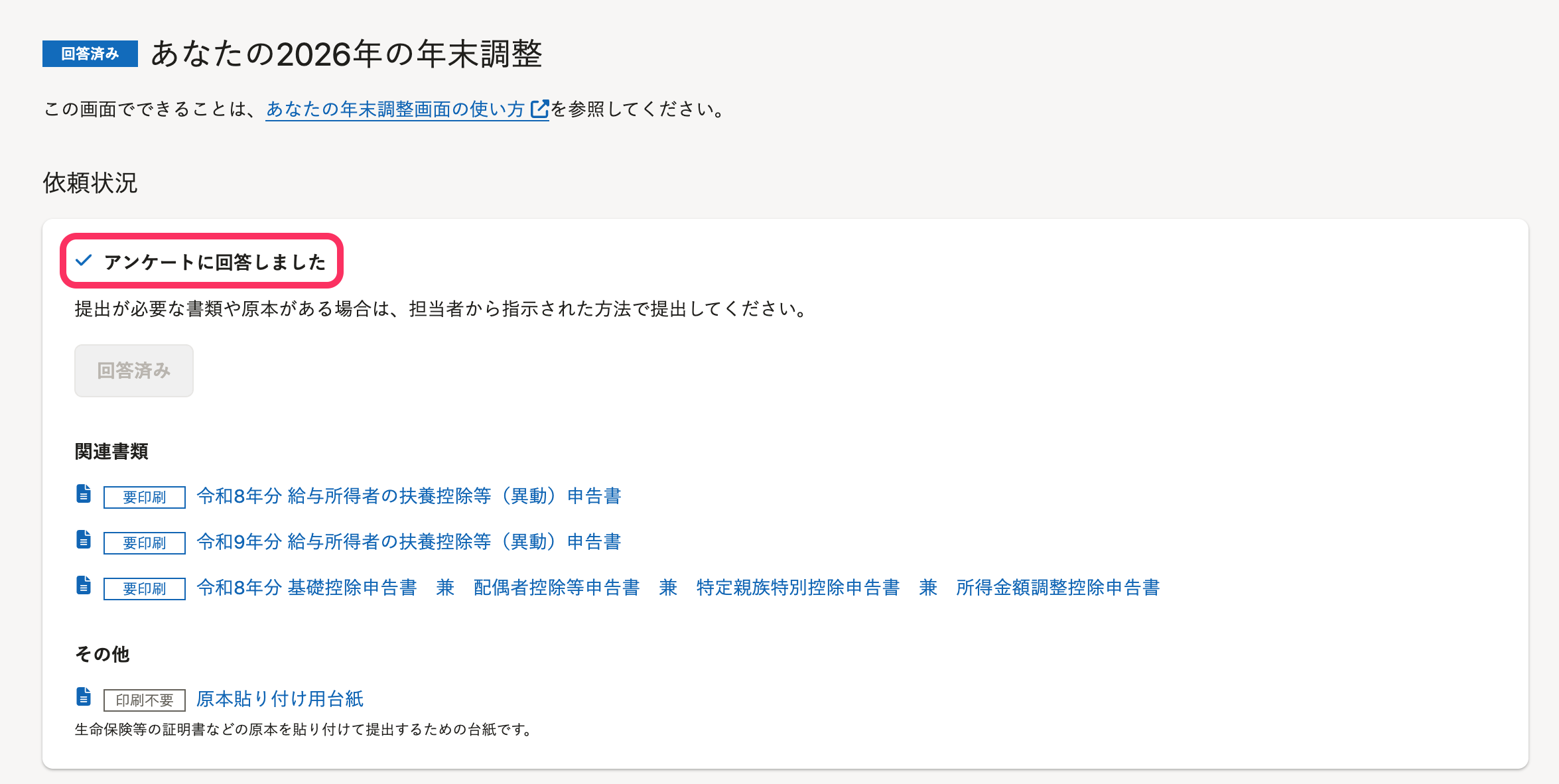
Your year-end adjustment page will then show The survey has been answered.
You can review the generated documents there.
 画像を表示する
If you need to make corrections
You can edit your answers as long as the administrator hasn’t reviewed them yet.
Press [Edit my answers] to open the editing page.
 画像を表示する
Select the item you want to correct from Select items to edit, enter the reason for correction, and press [Edit] . Make the necessary changes and save them by pressing [Save and Submit].
7. Prepare and submit the required documents
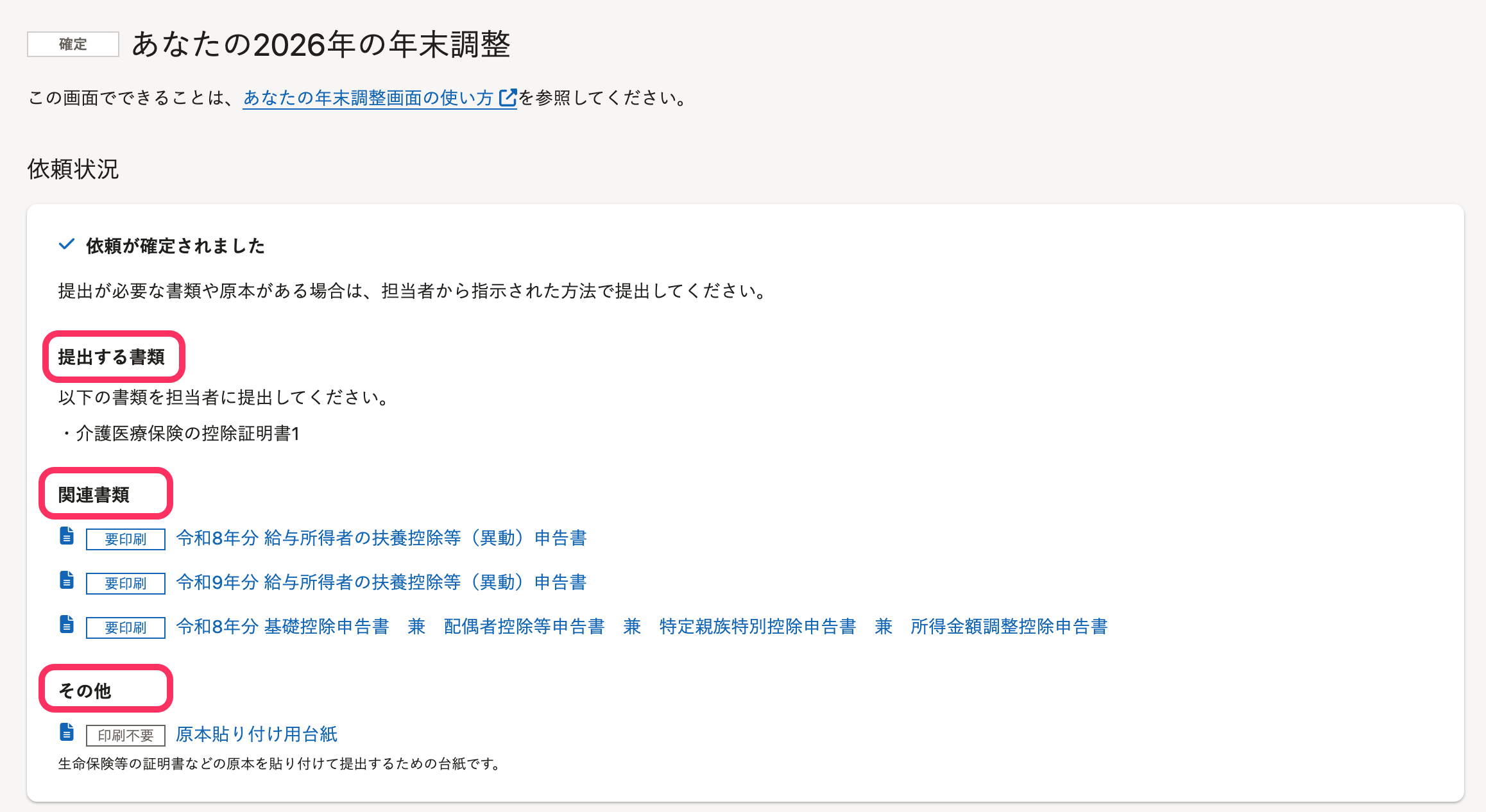
Read through the sections [Document(s) to submit] and [Related documents], then print out the necessary documents and submit them to the HR staff of your company, if required.
Documents labeled as [Must print] must be printed out and submitted to the HR.
 画像を表示する
About the [Sheet for affixing document originals]
The [Other] section shows the [Sheet for affixing document originals] only if your company’s HR staff has enabled the setting to use sheets for affixing originals in the Year-End Adjustment feature.
If the link is displayed, attach the originals (such as insurance or housing loan certificates) to the sheet before submitting. If you need multiple sheets, follow your HR staff’s instructions for combining and submitting them.
About housing loan deduction forms
The Year-End Adjustment feature in SmartHR creates and submits the housing loan deduction form (Application for Special Credit for Loans Related to a Dwelling / 給与所得者の住宅借入金等特別控除申告書) as electronic data. Because of this, you do not need to fill in the paper housing loan deduction form sent by the tax office. Even if you submit a paper certificate for housing loan deductions, you can leave the form section blank.
Whether you need to submit the originals of the certificate for housing loan deductions (Certificate for Special Credit for Loans Related to a Dwelling / 住宅借入金等特別控除証明書) and the year-end balance certificate (年末残高等証明書) depends on how you submit the certificate for housing loan deductions and on its method (certificate method / 証明書方式, or statement method / 調書方式).
-
If you submitted the certificate for housing loan deductions as electronic data (XML file):
- Statement method (調書方式): You do not need to submit the originals of the certificate for housing loan deductions or the year-end balance certificate.
- Certificate method (証明書方式): You do not need to submit the original of the certificate for housing loan deductions. You need to submit the original of the year-end balance certificate.
-
If you submit the certificate for housing loan deductions on paper:
- You need to submit the original of the certificate for housing loan deductions. If it uses the certificate method, also submit the original of the year-end balance certificate.
To check which method your certificate uses, see Q. 住宅ローン控除証明書の方式(証明書方式・調書方式)を確認するには?. For submitting electronic data, see Q. 保険料控除証明書や住宅ローン控除証明書、年末残高等証明書は電子データで提出できる?.
Need help?
Check the help pages under: Year-end adjustment. Our Help Center has articles addressing frequently asked questions from employees.